Add photos from your phone
On a computer, scan a QR code to take photos with your phone and send them straight to what you are editing.
Working on a computer but the item is in front of you? Use your phone's camera to add photos without emailing them to yourself.
Send photos from your phone
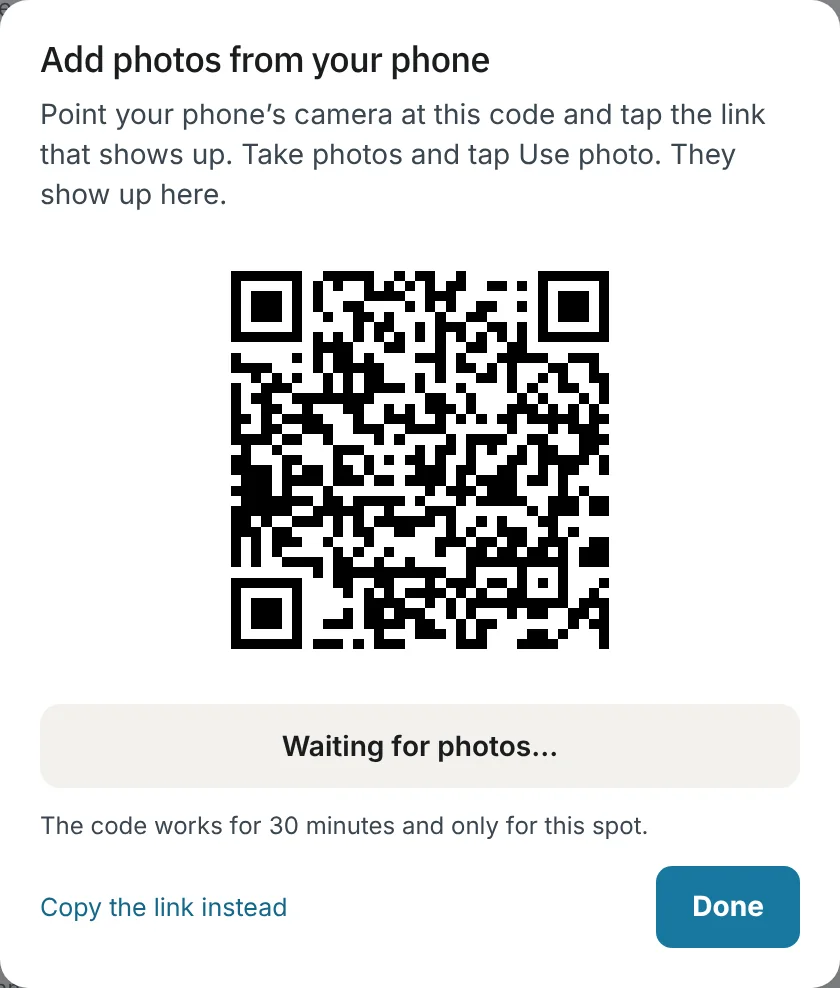
- On the computer, next to the photo or file upload, press Use your phone.

- A QR code shows up. Point your phone's camera at it and tap the link that appears. No sign-in is needed.
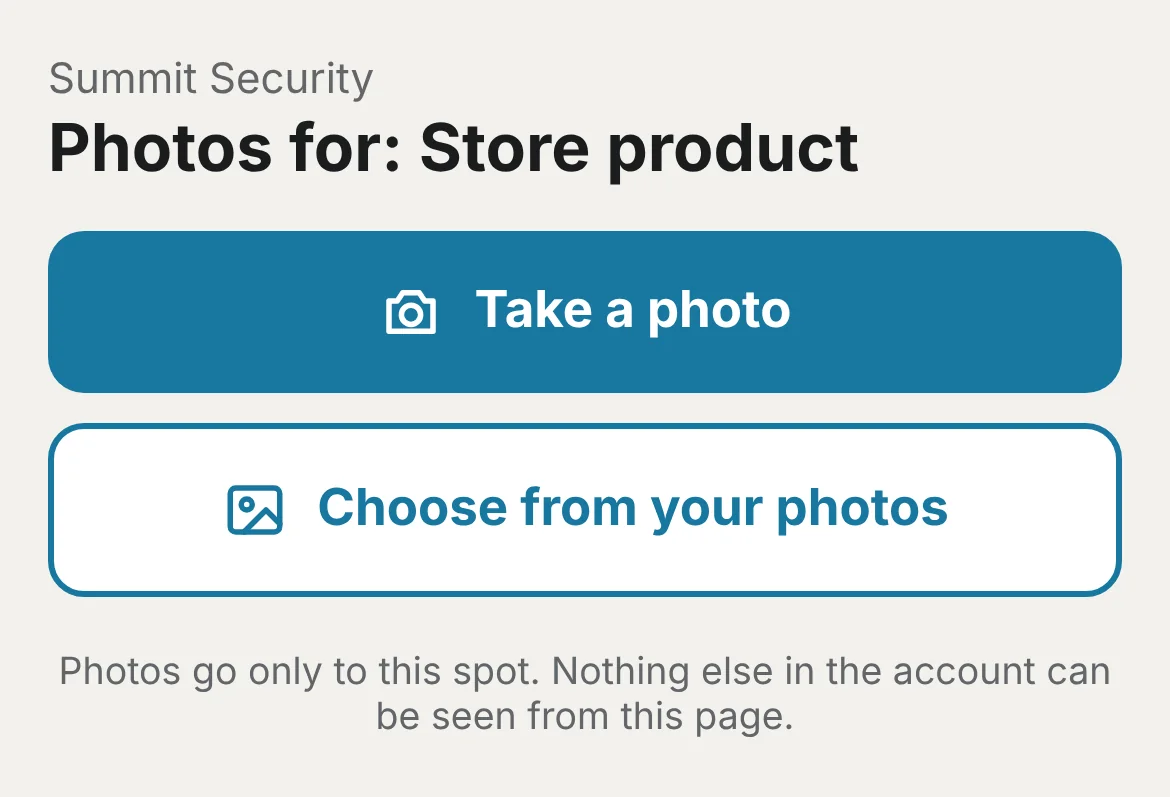
- On the phone, tap Take a photo or Choose from your photos.
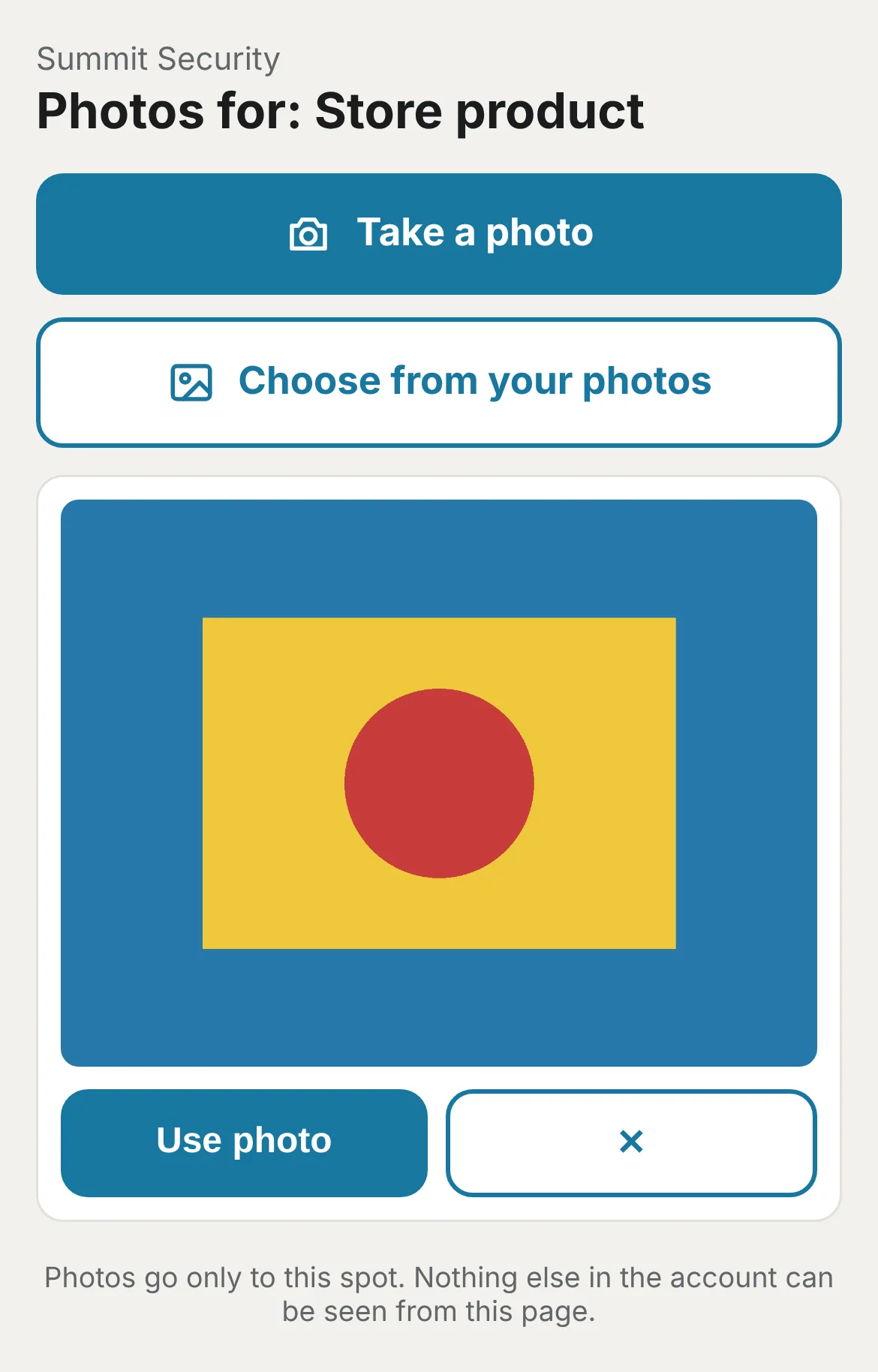
- Check the picture and tap Use photo. Tap Retake to try again. Send as many as you need.
- The photos show up on the computer within a few seconds. Finish there and press Done.
Where you'll find it
- Store products (product photos)
- items (item photo)
- Expenses (receipt photo)
- Jobs (attachments)
- Invoices and estimates (attachments)
- Clients (files)
- Properties (photos and files)
Note: Each code works for 30 minutes and only for the spot you opened it from, up to 20 photos. Pressing Done ends it right away. The phone page can't see anything else in your account.
Tip: The button only shows on a computer. On a phone, the upload buttons already open your camera.
Was this guide helpful?
Related guides
Add products to your storeHow to add notes and photos to a jobHow to create an invoiceStill stuck? Inside JobBills, press the round ? button to ask the help chat, or email [email protected].