How to merge duplicate clients
When the same customer was added twice, keep one client and move everything from the other one to it.
The same customer sometimes ends up in JobBills twice, for example once from an import and once from a service request. Merging keeps one client and moves everything from the other one to it, so nothing is lost.
JobBills warns you before it happens
When you add a client whose email or phone number already belongs to another client, a note appears under the field, for example "Joe Diaz already has this phone number", with a link to open that client. If it really is a different person, press Add anyway.
Turning a lead into a client works the same way: if a client with that email or phone already exists, the lead is attached to them instead of making a second client.
Merge two clients
- Open the client you want to get rid of (the duplicate).
- Press Merge…. On a phone it's under More actions at the bottom of the client page.
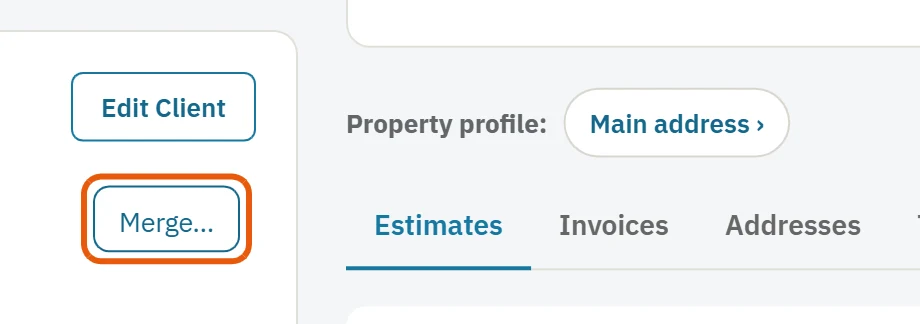
- Pick the client to keep. Search by name if the list is long.
- Press Merge.
Everything from the duplicate moves to the client you kept: jobs, estimates, invoices, payments, notes, files and the timeline. If the kept client is missing a detail, such as a second phone number or an address, it's filled in from the duplicate. The duplicate then goes to Recently deleted, where it can be restored for 30 days.