How to keep a property profile
Save the equipment, photos, access notes and service history for each address.
Each service address has a property profile, so the next tech knows what's there before they arrive.
Open it
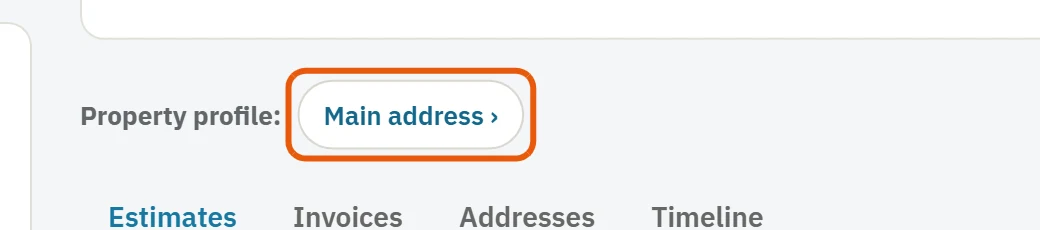
- On a client's page, press the address next to Property profile, for example Main address ›.
- On a job, press Open profile › under Property.
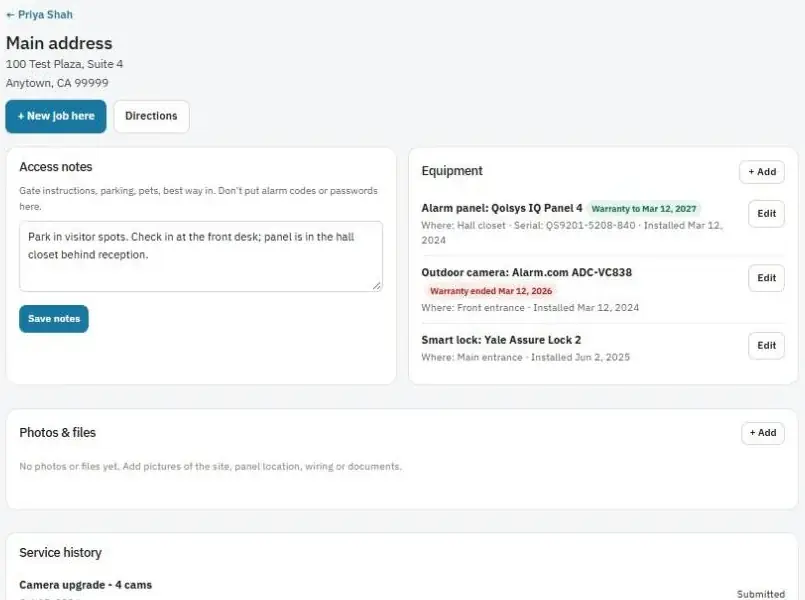
From the profile you can also press + New job here to book a job at this address, or Directions to open the map.
Equipment
- Press + Add on the Equipment card.
- Pick the type, for example Alarm panel, Motion sensor, Video doorbell, Smart lock or AC unit, and add the make and model.
- Optional: add the Serial number, Where is it? (for example "Hall closet"), Installed on and Warranty ends.
- Save it.
Equipment with a warranty shows whether it's still covered.
Photos and files
Add pictures of the site, the panel location, wiring or documents. Files up to 15 MB.
Access notes
Gate instructions, parking, pets and the best way in. Press Save notes.
Warning: Don't put alarm codes or passwords in access notes.
Service history
Every job, estimate and invoice at this address. If something was really done here but is listed under the client's other address, press Move here.
Was this guide helpful?
Related guides
How to use the client pageHow to set up maintenance remindersHow to work a job from start to finish (techs)Still stuck? Inside JobBills, press the round ? button to ask the help chat, or email [email protected].