How to bill a client every month or year (subscriptions)
Set up monitoring or a service plan once and JobBills makes and emails the invoice every period. Change, pause or cancel it any time.
A subscription bills a client again and again for the same thing, for example Alarm monitoring, $34.99 every month. On each bill date JobBills makes the invoice and, if you want, emails it to the client with a Pay button. You don't need Stripe for this; with Stripe connected, customers can pay the emailed invoice online.
Set one up
- Open the client's page.
- On the Subscriptions card, press + Add.
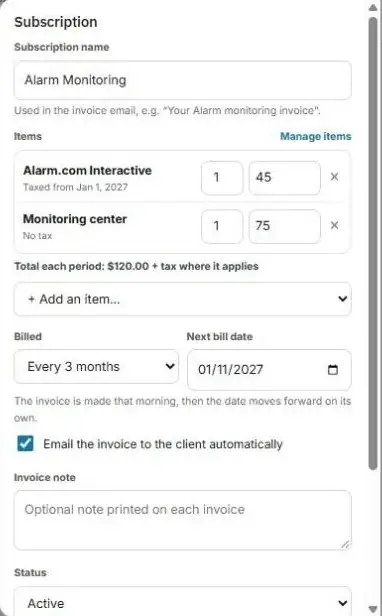
- Type a Subscription name, for example "Alarm monitoring". It's used in the invoice email.
- Under Items, pick what you're billing from the list (for example "Alarm.com Interactive" and "Video add-on"). Change the quantity or price for this client if you need to.
- Choose how often it's Billed: Monthly, Every 3 months, Every 6 months or Yearly.
- Pick the Next bill date. The invoice is made that morning, then the date moves forward by itself.
- Leave Email the invoice to the client automatically checked to send it, or uncheck it to only make the invoice.
- Add an optional Invoice note, then press Add subscription.
Change, pause or cancel a subscription
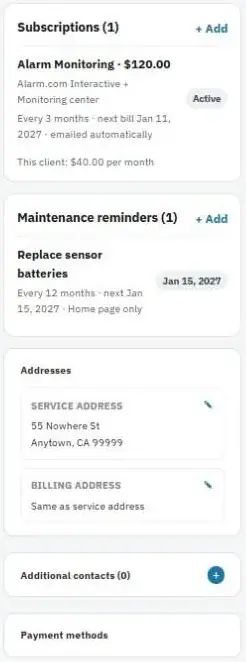
Press the subscription on the client's Subscriptions card to open it.
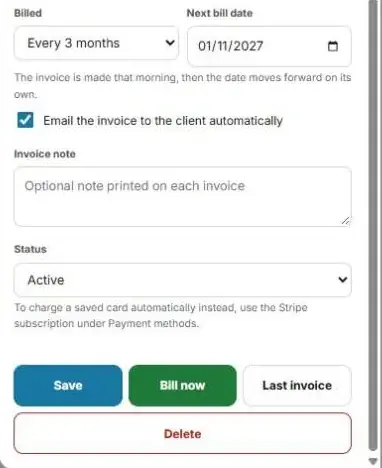
- Change it: edit the items, prices, how often or the next bill date, then press Save.
- Pause it: set Status to Paused (skip billing) and press Save. Nothing is billed until you set it back to Active.
- Cancel it: set Status to Canceled and press Save. Invoices already made are kept.
- Bill now: makes the invoice for the next period right away (and emails it if that's turned on).
- Last invoice: opens the most recent invoice it made.
- Delete: removes the subscription completely. Invoices already made are kept.
Sales tax on subscriptions
Check Charge sales tax on this item on a subscription product to tax it with each client's rate. You can also set Taxable starting to a future date. For example, California taxes Alarm.com services from Jan 1, 2027, so bills for periods starting on or after that date get tax added by themselves.
What you'll see
- The client's card shows each plan, when it bills next, and what the client pays per month.
- The Home page shows your Recurring revenue per month and what will bill in the next 7 days.
- The Reports page has a Subscriptions & recurring revenue report.