How to send an estimate for approval
Email the estimate. Your customer reviews it online and signs to approve.
Send it
- Open the estimate and press Send.

- Choose Via email.
- Check the To address. Add up to 5 more in Cc, separated by commas.
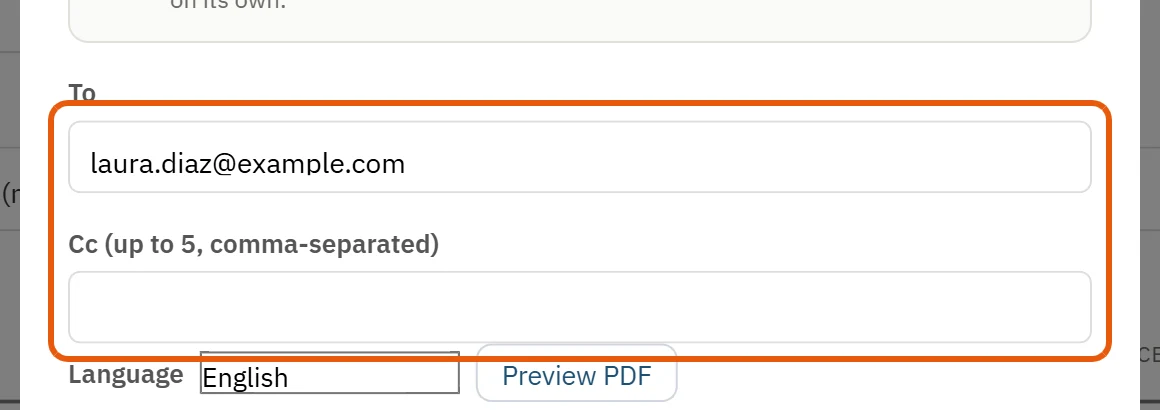
- Edit the Subject and Message if you like.
- Leave Include PDF attachment checked to attach a PDF copy.
- Optional: press Advanced ▾ to choose what the client can see: item description, quantity, price, line total and estimate totals.
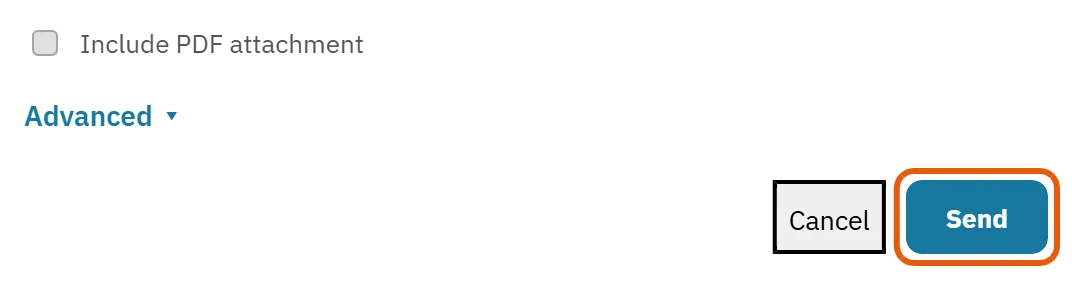
- Press send. Nothing goes out until you confirm in this window.
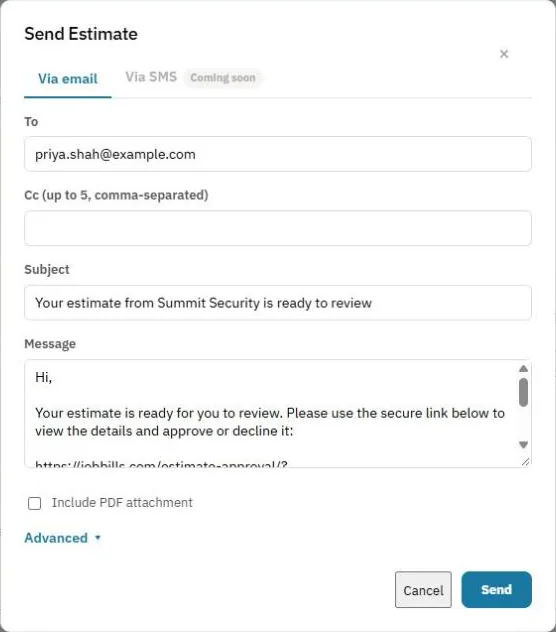
Note: Texting estimates (SMS) is coming soon. For now, estimates go by email.
What your customer sees
They get an email with a button to view the estimate online. They can approve it by signing, or decline it. If you sent several options, each approved option gets its own signature.
When they answer
- The estimate's status changes to Approved or Declined.
- You get an email, and a phone notification if you turned on Estimate approved or declined.
Follow up
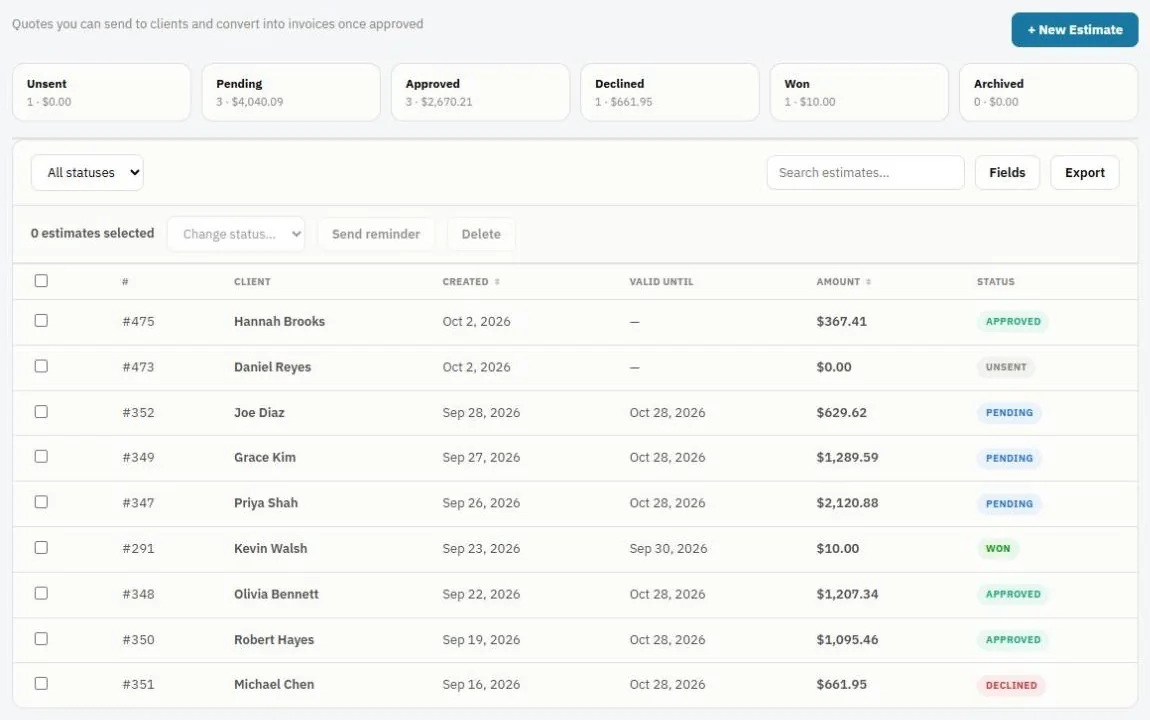
On the Estimates list, tick the estimates waiting on the customer and press Send reminder.
Estimate statuses
Unsent, Pending (sent, waiting on the customer), Approved, Declined, Won and Archived. Use the cards at the top to filter. To change several at once, tick them and use Change status….
Tip: If the customer changes their mind after approving, open the estimate and use Reset approval.
Was this guide helpful?
Related guides
How to create an estimateHow to take a deposit on an estimateHow to turn an estimate into an invoice or a jobStill stuck? Inside JobBills, press the round ? button to ask the help chat, or email [email protected].