How to create an estimate
Build a quote with items from your items, packages, discounts and options.
Create it
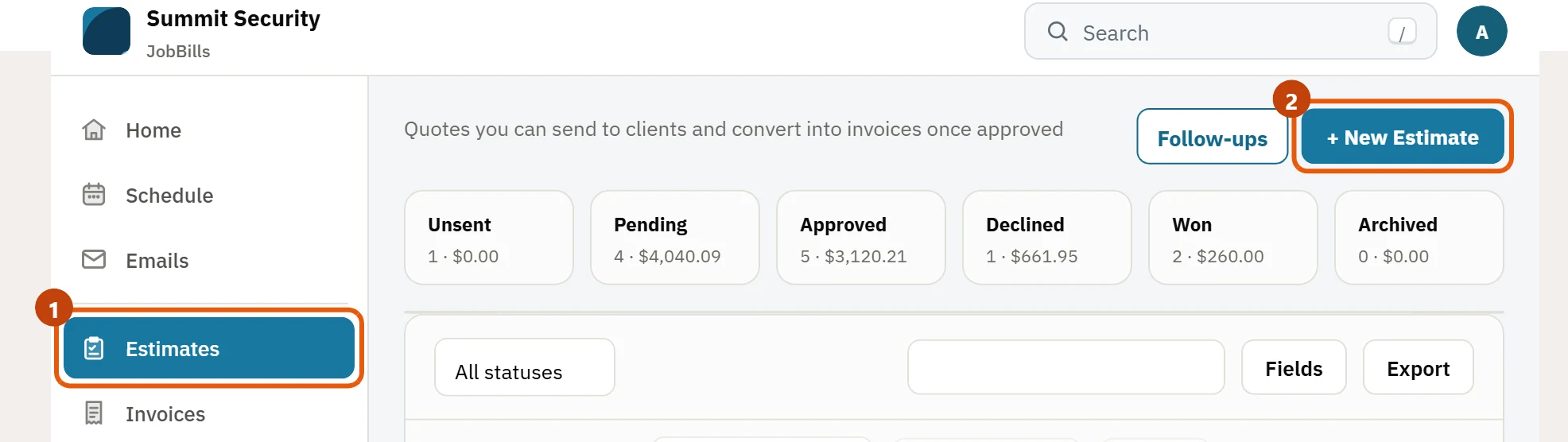
- Go to Estimates and press + New Estimate. On a phone, press Create → Estimate or use the Create estimate button on Home.
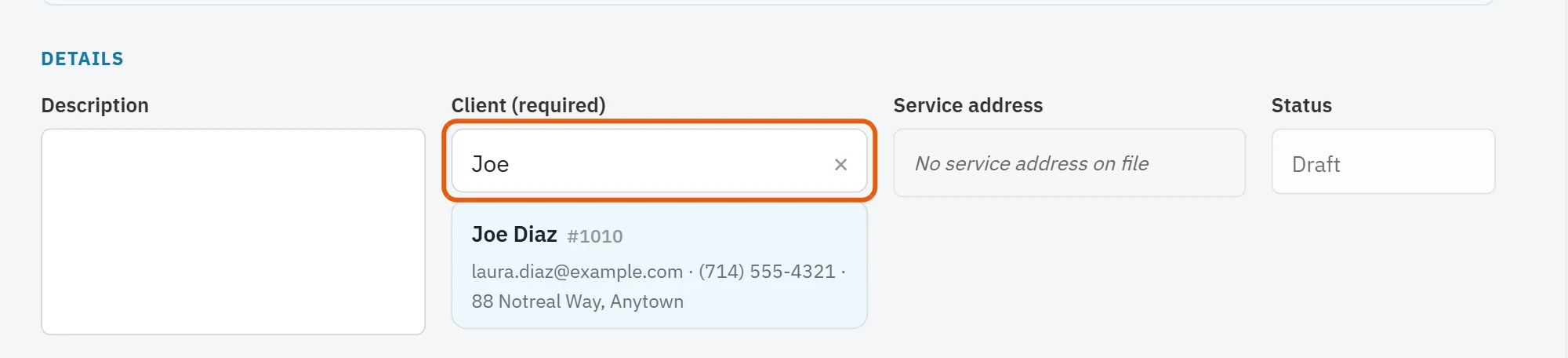
- In Client, type a name, email, phone or customer # and pick the client. The Service address fills in.
- Optional: add a Description, choose who it's Sent By, and set Valid Until.
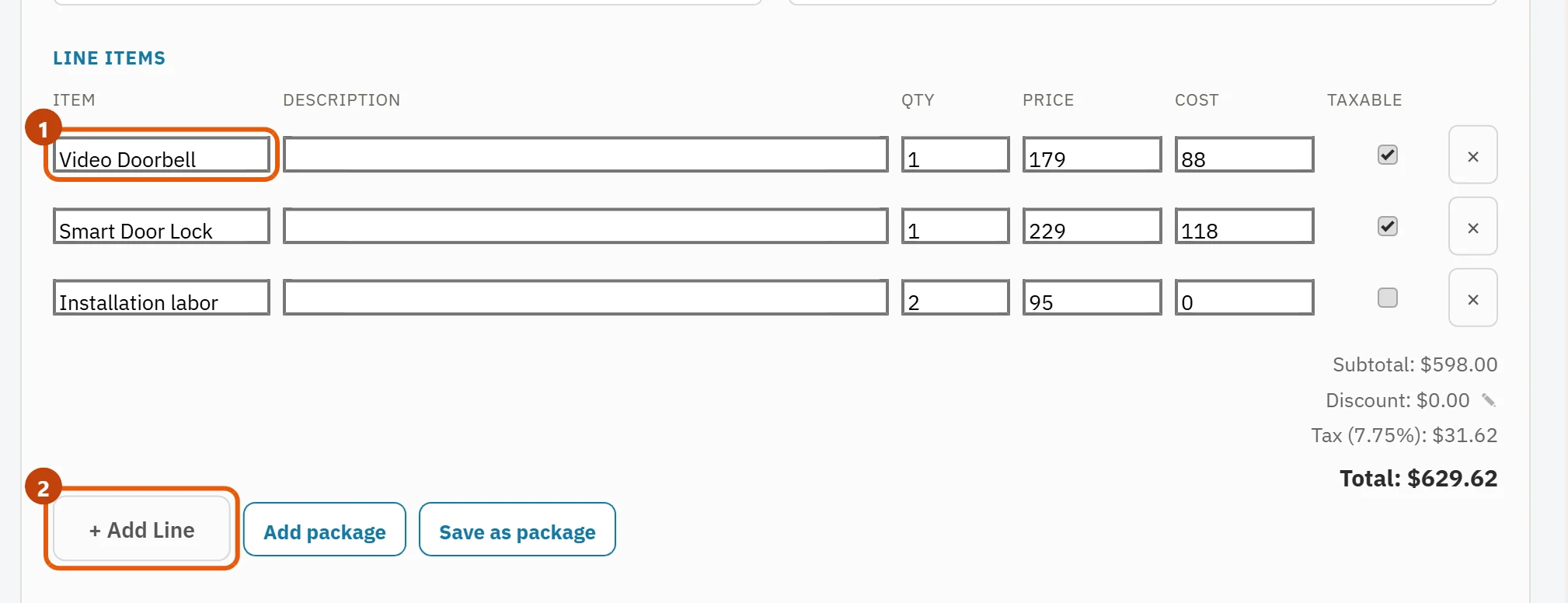
- Add your lines. For each one, type in Item to pick from your items (the price fills in) or type your own, then set the quantity and price. Press + Add Line for more.
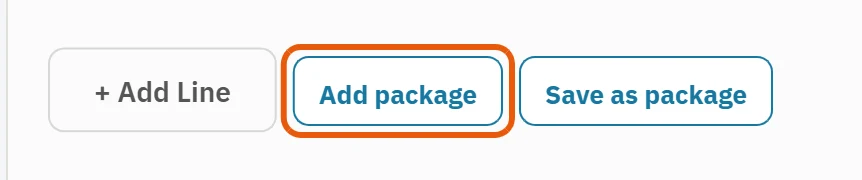
- To add a group of items you sell together, press Add package.
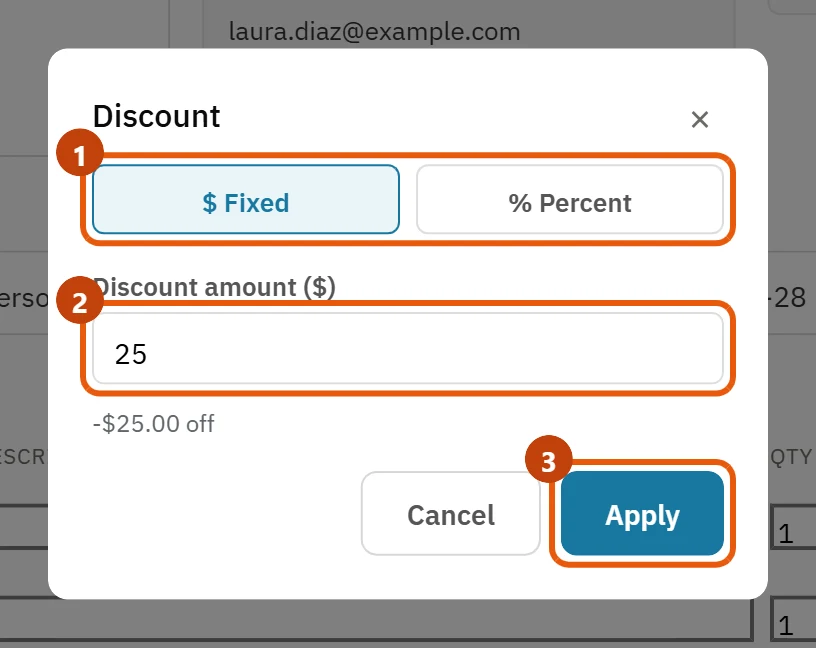
- Optional: under Discount, choose $ Fixed or % Percent, type the amount and press Apply.
- Press Save Estimate.

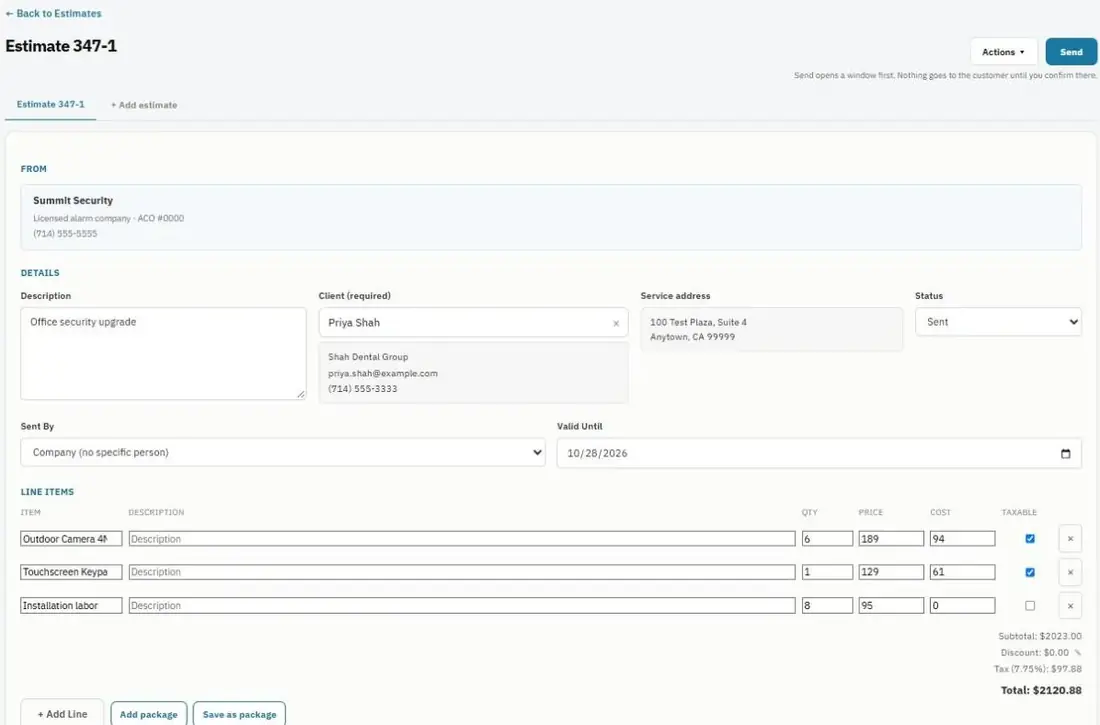
Sales tax is added based on the client's tax rate.
Give the customer options
On the saved estimate, press + Add estimate to add another option, for example Good / Better / Best. When you send them, you choose whether the customer picks one or may approve several.
Save lines for next time
Press Save as package to save the lines as a package you can add to future estimates and invoices in one click.
Tip: Nothing goes to the customer when you save. See Send an estimate for approval.
Was this guide helpful?
Related guides
How to send an estimate for approvalHow to take a deposit on an estimateHow to add items to your itemsStill stuck? Inside JobBills, press the round ? button to ask the help chat, or email [email protected].