Roles and permissions: what each person can see and do
Pick a role for each person, then switch individual permissions and extra pages on or off.
The roles
Set each person's Access on the Manage team page:
- Partner (same as owner): can do everything the owner can, except close or cancel the account.
- Manager: runs the day-to-day: jobs, schedule, clients, estimates, invoices and the team's time.
- Office / Dispatcher: books and schedules jobs, handles clients, estimates and invoices.
- Technician: their jobs and schedule, clock in/out, mileage, receipts, and estimates and invoices for their jobs. Not costs, reports, leads, emails or settings.
- Bookkeeper (view only): sees the money (invoices, payments, expenses, reports) but can't change anything.
- Subcontractor: only the jobs assigned to them.
Fine-tune one person
Press Permissions & extra access on their row to switch things on or off for just that person:
- Can see prices, Can give discounts, Can take payments, Can create invoices
- Can see customers' phone & email
- Can see costs & profit
- Everyone's timesheets, mileage & expenses (not just their own)
- Extra pages their role doesn't include, like Big Jobs, Leads, Reports or Inventory
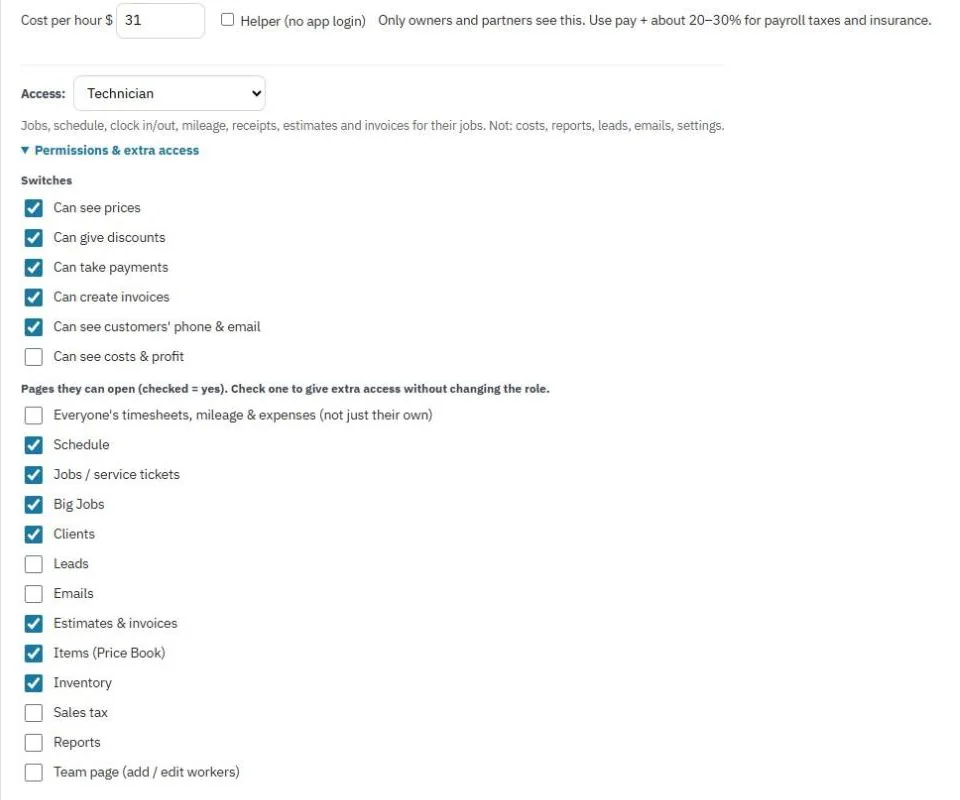
Tip: This way you can give one tech access to Inventory, for example, without making them a manager.
See it the way they do
Press Preview as Technician (or any role) to see the app exactly the way that role sees it. A purple banner shows while you're previewing. Press it to go back.
Note: Only the owner and partners can change roles. Settings that change the business, like Stripe, billing and the account itself, are owner-only.
Was this guide helpful?
Still stuck? Inside JobBills, press the round ? button to ask the help chat, or email [email protected].