How to see a Big Job's profit
Track parts, extra expenses, mileage and labor against the contract, and set the real cost of each item.
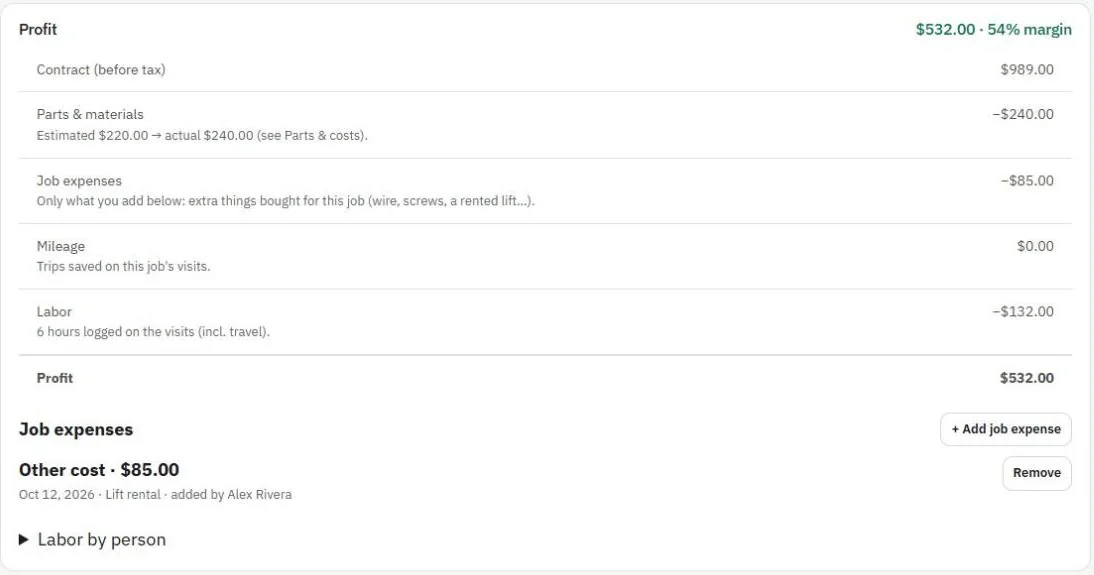
The Profit card shows the contract minus everything the job cost:
- Parts & materials from the estimate and change orders, using the actual cost where you've set it.
- Job expenses: extra things bought for this job.
- Mileage from the visits.
- Labor: hours logged on the visits × each person's cost per hour.
Set the real cost of an item (Parts & costs)
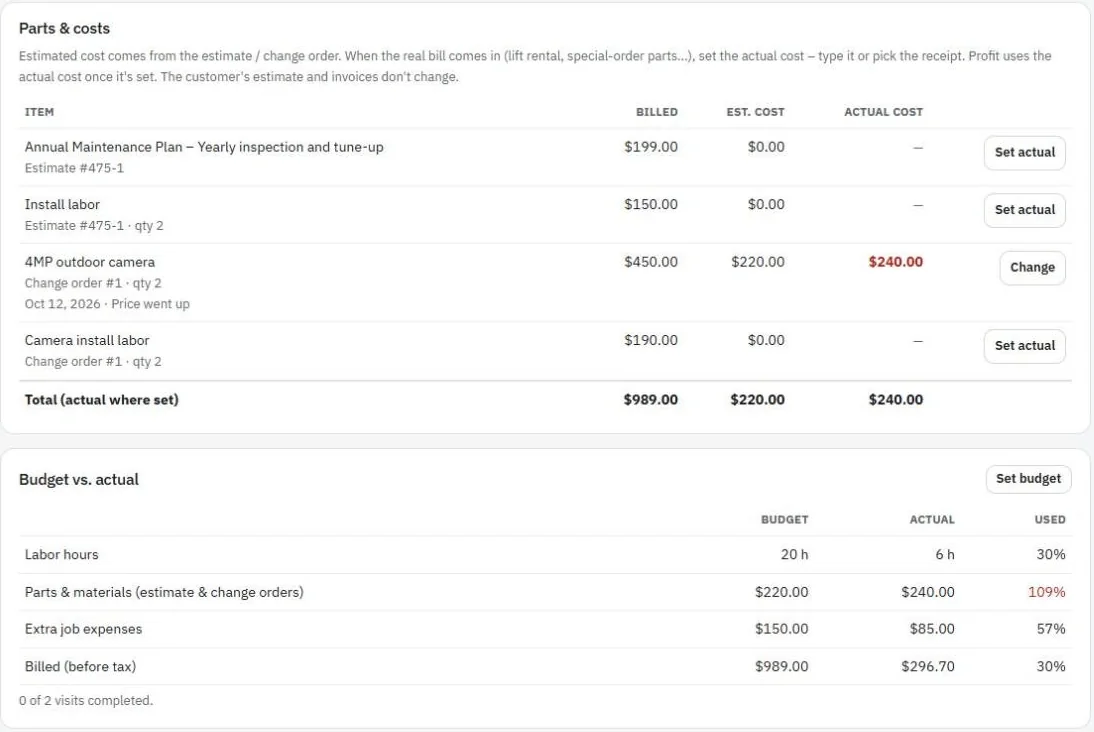
The real bill is often different from the estimate, like a lift rental or a special-order part that went up in price.
- Find Parts & costs. It lists every item on the estimate and change orders.
- Press Set actual on the item.
- Choose From a receipt and pick the receipt (and the items on it), or Type the cost.
- Save. Profit now uses the actual cost. The customer's estimate and invoices don't change.
To undo it, press Change → Use the estimated cost again.
Add an extra job expense
For things that weren't on the estimate, like screws, wire or a rented tool:
- Under Job expenses, press + Add job expense.
- Pick the receipt from Expenses and check the items that were for this job, or add another cost.
Warning: Don't add parts that are already on the estimate here, or they'll be counted twice. Set their actual cost under Parts & costs instead.
Labor
Labor uses each person's Cost per hour, set on the Team page. You can add hours for helpers who don't use the app. See Add your team.
Budget vs. actual
Press Set budget to enter the labor hours and extra expenses you planned. The card shows how much of each you've used.
Was this guide helpful?
Still stuck? Inside JobBills, press the round ? button to ask the help chat, or email [email protected].