How to send email and answer customers from the Emails page
Your business email address, replies in one place, and AI help writing emails.
Your business email
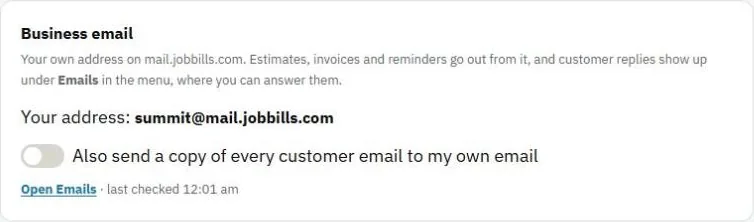
Every business gets its own address on mail.jobbills.com. You'll see it under Business email in Settings. Estimates, invoices and reminders go out from it, and customer replies come back to the Emails page.
- Check Also send a copy of every customer email to my own email to get copies in your normal inbox.
- Prefer your own Gmail address? Under Email Sending, press Connect a Gmail account.
Answer customers
- Go to Emails. Each client has one conversation.
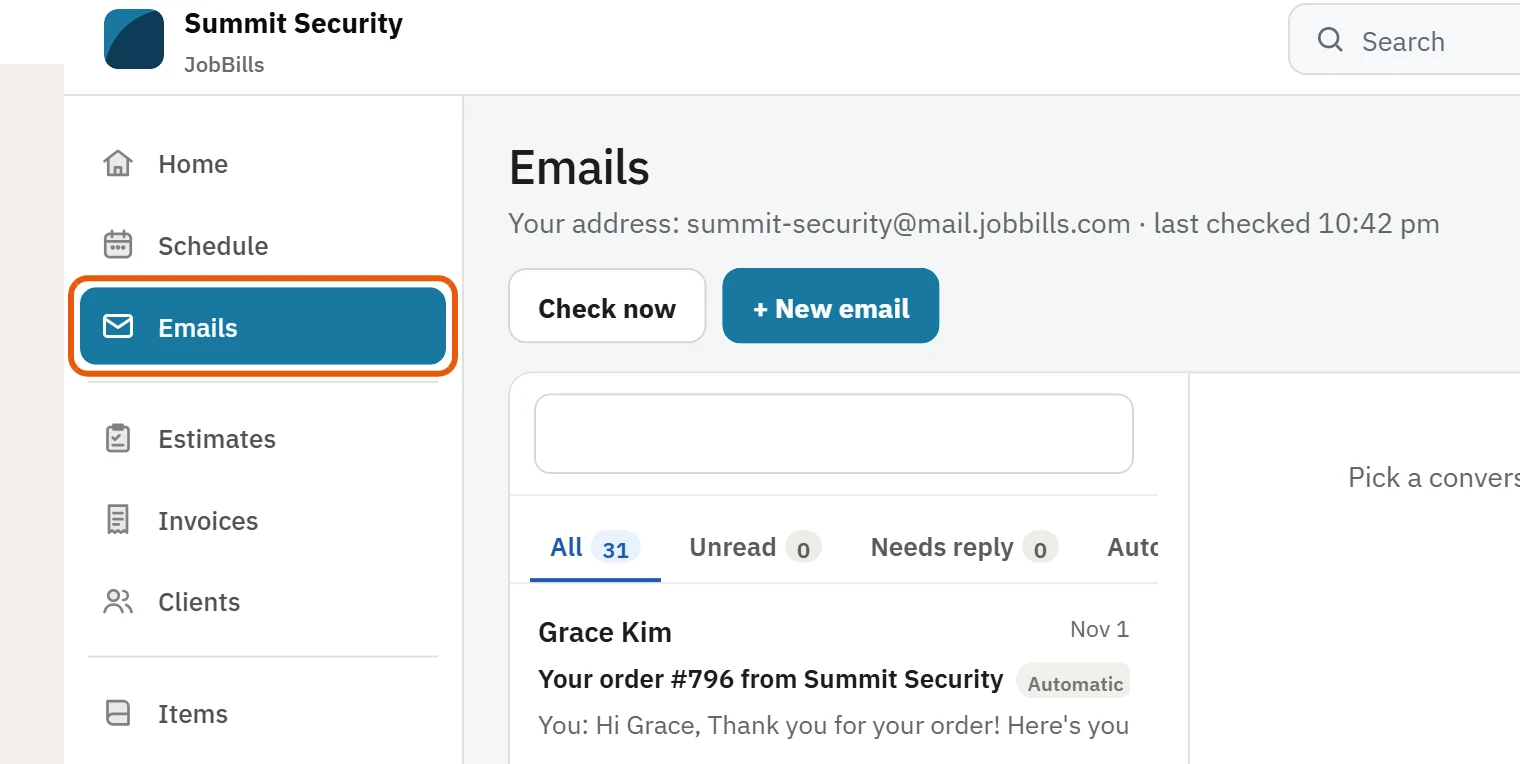
- Pick a conversation on the left.
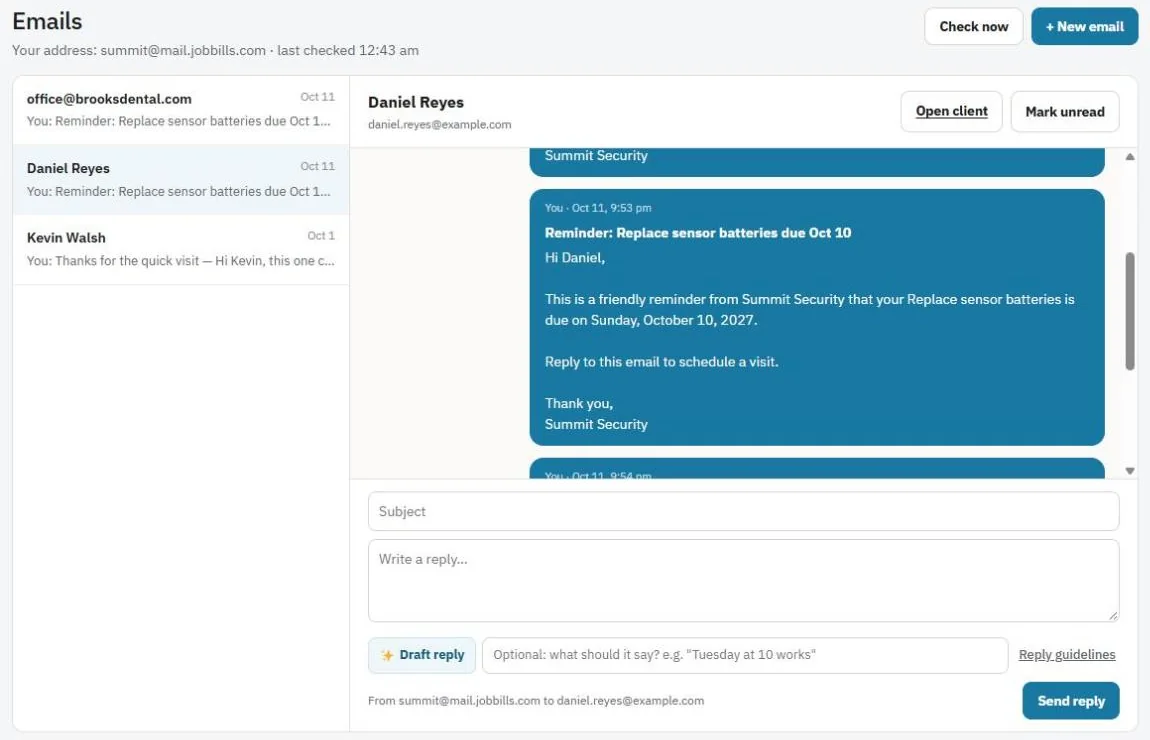
- Type your reply and send it. Press Check now to look for new replies right away.
Let AI draft a reply
Under the reply box, press Draft reply. It writes a reply using the email and that client's upcoming appointments, unpaid invoices (with the pay link) and estimates waiting for approval.
- Type what it should say first, for example "Tuesday at 10 works".
- Use Shorter, Friendlier or Try again.
- Anything it doesn't know is left in [brackets] for you to fill in.
- It never sends by itself. Read it, edit it, then send.
Owners can set Reply guidelines: how replies should sound, your sign-off, hours and standard prices.
Write a new email with AI
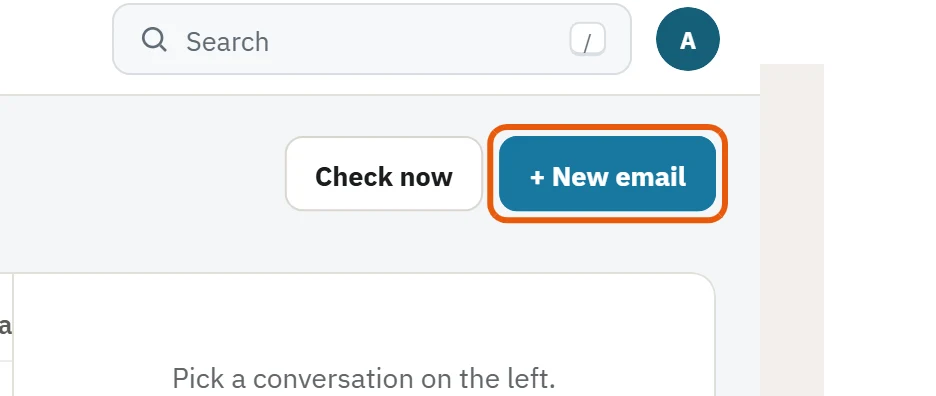
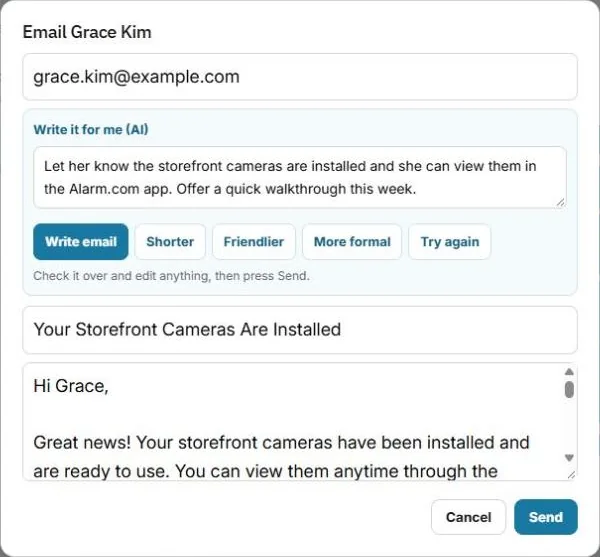
- Press + New email and pick the client.
- In Write it for me (AI), type what you want to say, for example "remind them their annual inspection is due next month".
- It writes the subject and the email. Use Shorter, Friendlier, More formal or Try again.
- Edit anything you like, then send.
Was this guide helpful?
Related guides
How to add your business details and logoHow to send an invoiceHow to send an estimate for approvalStill stuck? Inside JobBills, press the round ? button to ask the help chat, or email [email protected].