How to run reports
See sales, payments, unpaid invoices, tech performance, profit and more, and download them.
Run a report
- Go to Reports (under More in the menu).
- Pick the Dates: This month, Last month, Last 30 days, This quarter, This year, Last year, or Custom… with From and To dates.
- Check the reports you want.
- Press Show reports.
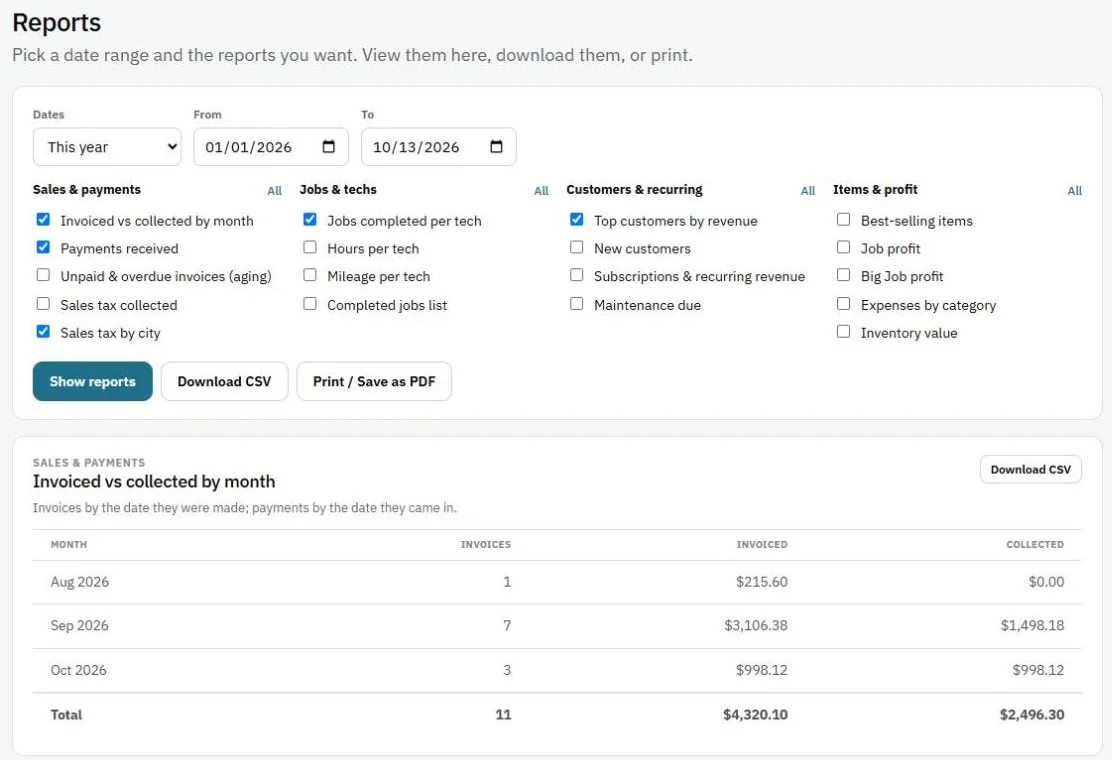
The reports
- Money: Invoiced vs collected by month, Payments received, Unpaid & overdue invoices (aging), Subscriptions & recurring revenue.
- Sales tax: Sales tax collected, Sales tax by city.
- Team: Jobs completed per tech, Hours per tech, Mileage per tech, Completed jobs list.
- Customers: Top customers by revenue, New customers, Maintenance due.
- Items and profit: Best-selling items, Job profit, Big Job profit, Expenses by category, Inventory value.
Save or share
- Download CSV opens the results in Excel or Google Sheets.
- Print / Save as PDF prints them or saves a PDF for your accountant.
Note: Profit reports use the costs in your items, job expenses and each person's cost per hour. Keep those up to date for accurate numbers.
Was this guide helpful?
Related guides
How to set up sales tax and run the sales tax reportHow to see a Big Job's profitHow to scan a receipt and log expensesStill stuck? Inside JobBills, press the round ? button to ask the help chat, or email [email protected].