Ship orders and print packing slips
Set shipping or pickup, see new orders, print packing slips and mark orders shipped and delivered.
Shipping and pickup options
- Shipping: in Store Settings > Delivery, turn on Offer shipping, enter a Shipping price and, if you like, Free over an amount. The shop shows the free-shipping amount and a progress bar in the cart.
- Pickup: turn on Offer pickup and enter the pickup address and hours.
New orders
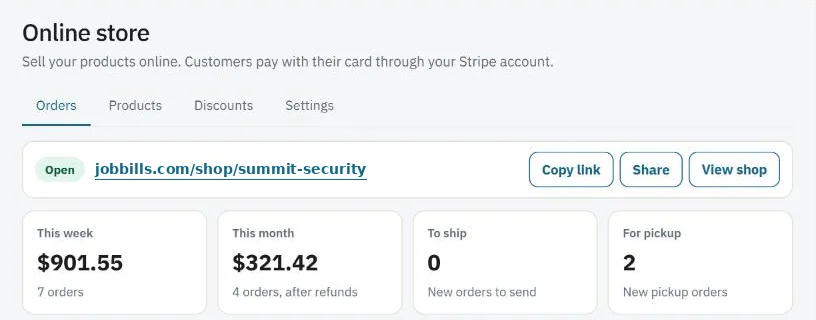
- You get an email for each new order. It also shows in Store Orders, with a summary at the top: sales this week and month, orders to ship and pickup orders waiting.
- Customers see the status as Processing until you update it.
Print packing slips
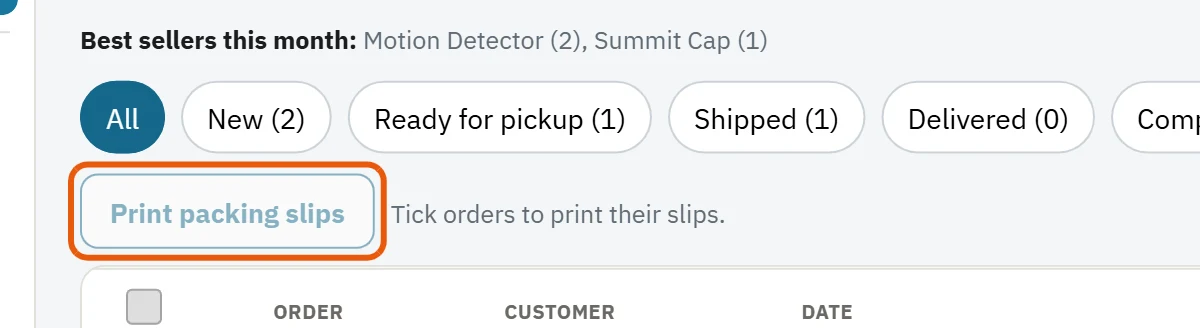
- Open an order and press Print packing slip, or tick several orders and press Print packing slips.
- Each slip shows the order number, the ship-to address (or Pickup), the items and quantities without prices, and the customer's note. Press Print on the slip page.
Ship an order
- Buy the label where you usually do (USPS, UPS, Pirate Ship...).
- Open the order, pick the carrier, type the tracking number and press Mark shipped.
- The customer gets an email with a Track package link, and their order page shows Shipped.
- When it arrives, press Mark delivered. The customer gets a delivered email.
Pickup orders
Press Mark ready for pickup. The customer gets an email with your pickup address and hours. Press Mark completed when they've picked it up.
Was this guide helpful?
Still stuck? Inside JobBills, press the round ? button to ask the help chat, or email [email protected].