Use your own domain for your shop
Show your shop, invoice links and client portal on your own web address, like shop.yourbusiness.com.
Your shop, invoice and estimate links, payment page and client portal can show on your own web address, like shop.yourbusiness.com. Your main website stays where it is, and your team keeps using JobBills as usual. This is part of the Pro plan.
Connect it
- Go to Settings and find Your domain.
- Type the address you want, like shop.yourbusiness.com, and press Connect. Use a subdomain (the part before your main domain), not your main address.
- JobBills shows one record to add. Sign in where you bought your domain (GoDaddy, Namecheap, Cloudflare...), open its DNS settings and add a CNAME record with the Name and Value shown. The steps for the most common companies are on the same page.
- Come back and press Check. It can take up to an hour for the record to show, and a few minutes more for the secure padlock.
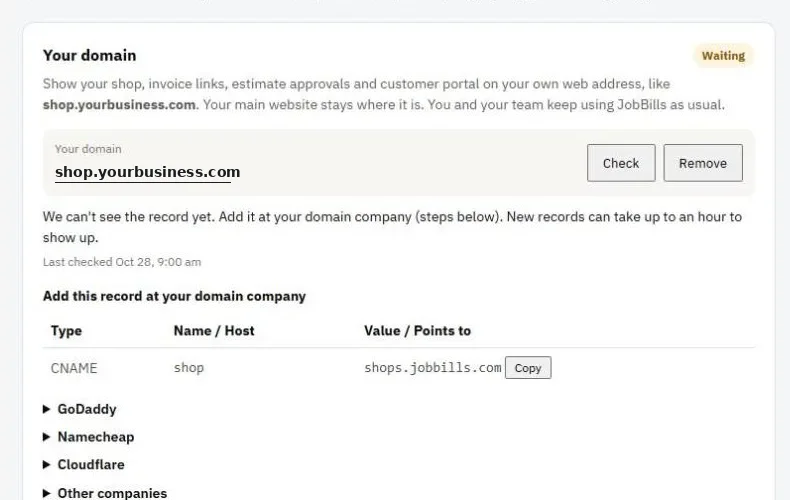
When it says Working, new emails and texts to your customers use your address.
If it stops working
If your record is changed or removed, customer links go back to jobbills.com automatically and we email you. Fix the record and press Check again.
On Cloudflare, turn the orange cloud off (DNS only) for this record.
Was this guide helpful?
Related guides
Set up your online storeStill stuck? Inside JobBills, press the round ? button to ask the help chat, or email [email protected].