How to track jobs and their status
Use the Jobs list and statuses to see what's waiting, in progress and done.
Statuses
Every ticket has a status that moves along with the work:
- Unscheduled: no date yet.
- Submitted: scheduled and waiting for the visit.
- In Progress: the tech has started.
- Pending: waiting on something, like a part or the customer.
- Completed: the work is done.
Techs update the status from their phone as they work. You can also change it on the ticket under Job Status and press Save Changes. Each change is saved to the job's activity timeline.
The Jobs list
- The buttons at the top (All, Unscheduled, Submitted, In Progress, Pending, Completed) filter the list and show how many are in each.
- Use Search jobs… to find a ticket.
- Press Fields to choose the columns: Job ID, Client, Job Type, Scheduled, Tech, Address, Time in Status and more.
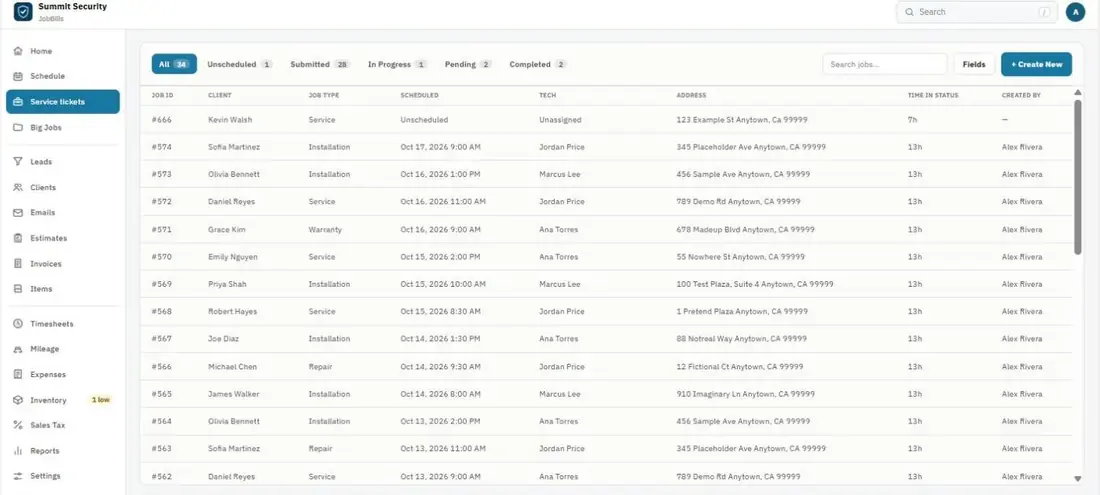
Tip: Sort by Time in Status to spot jobs that have been "Pending" for too long.
On the ticket page
- Job activity shows what happened and when. Press Add note to add one.
- Property links to the property profile for the address.
- + Create Invoice makes the invoice from the ticket's items.
- Mark as Closed closes the ticket when everything is wrapped up.
Was this guide helpful?
Related guides
How to create a jobHow to work a job from start to finish (techs)How to create an invoiceStill stuck? Inside JobBills, press the round ? button to ask the help chat, or email [email protected].