How to use the schedule
See everyone's jobs by day, week or month, and drag jobs to schedule or move them.
Views
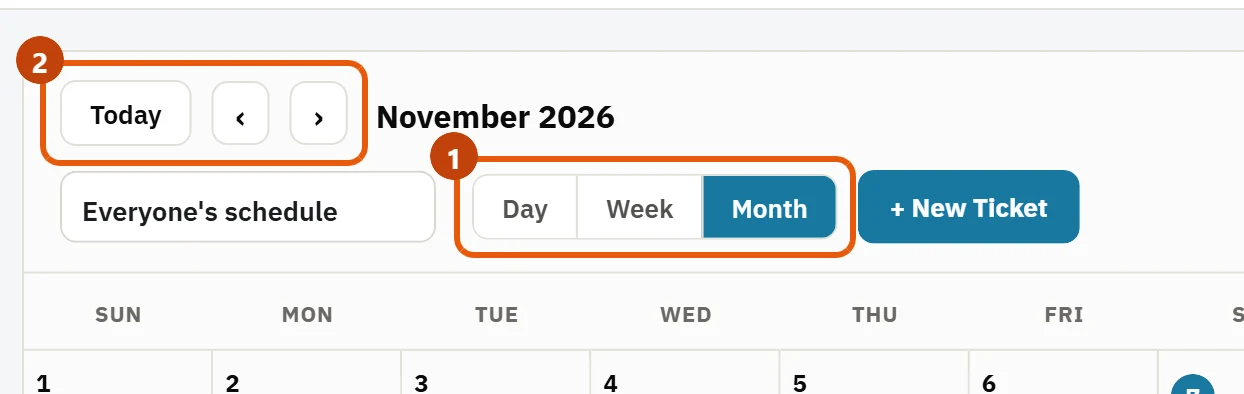
- Press Day, Week or Month at the top. Use Today and the ‹ › arrows to move around.
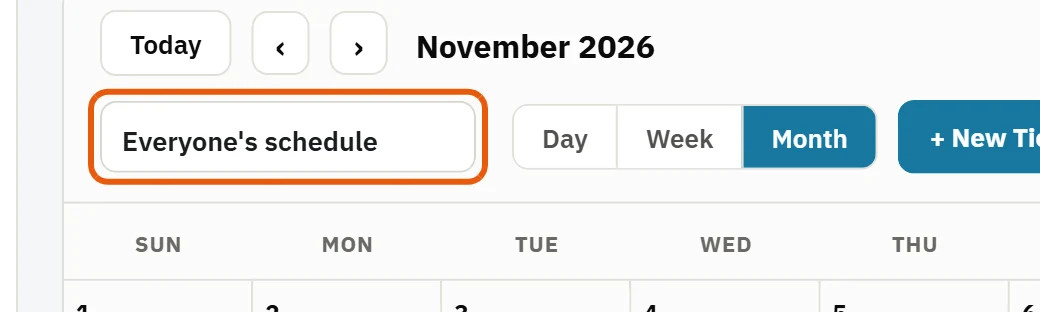
- Use the schedule picker to see Everyone's schedule, one tech, or Not assigned yet.
- Use the search box to find a job by customer, job name or city.
Each tech has their own color, so you can see who's where at a glance.
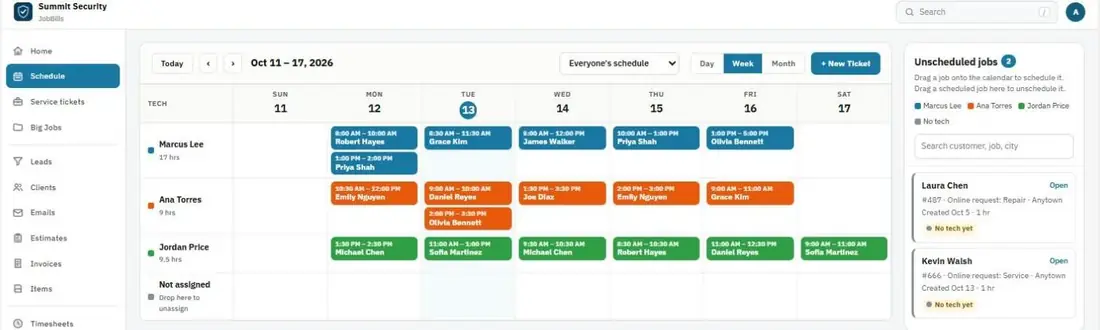
Schedule an unscheduled job
The Unscheduled jobs panel on the right lists jobs with no date, like new online requests.
- Drag a job from the panel onto a day, or onto a tech's row.
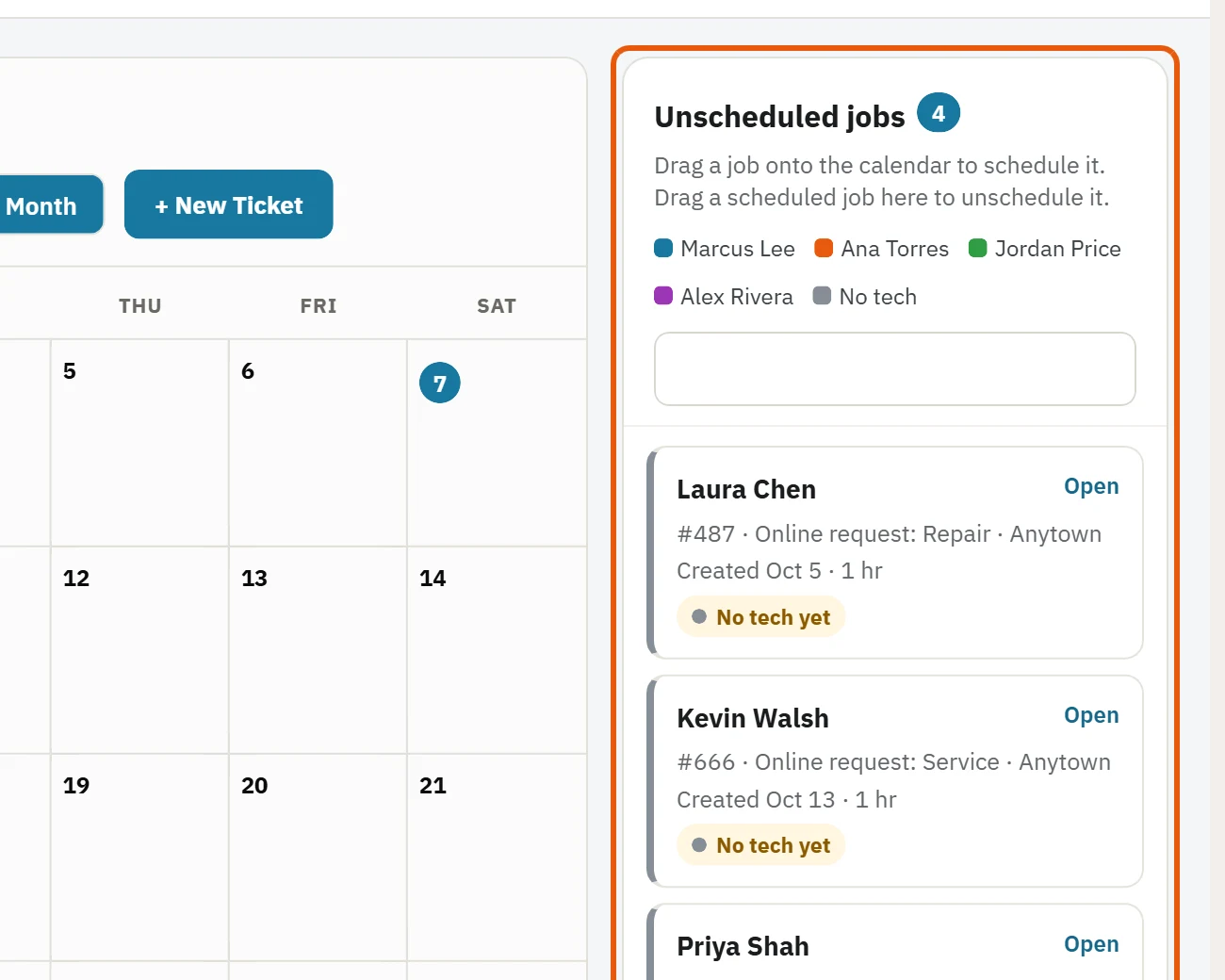
- If it has no tech yet, you'll be asked who to assign.
Drag a scheduled job back onto the panel to unschedule it.
Move or resize a job
In the Week and Day views:
- Drag a job to move it to another time or day.
- Drag its edge to make it longer or shorter.
- Drag it to another tech's row to give it to that tech.
In Month view, each day shows two jobs plus "+N more jobs". Press it to see them all.
Tip: Press a job to open it and see its details, techs, items and invoice.
Was this guide helpful?
Related guides
How to create a jobHow to track jobs and their statusHow to take service requests onlineStill stuck? Inside JobBills, press the round ? button to ask the help chat, or email [email protected].