Choose how customers can pay an invoice
Take Zelle, Venmo, Cash App, PayPal, or cash or check, and pick the ways each invoice shows.
Clients can pay an invoice online by card or bank account (through Stripe), or with Zelle, Venmo, Cash App, PayPal, or cash or check. You choose which ways show on each invoice.
Set up Zelle, Venmo, Cash App, PayPal, and cash or check
- Go to Settings → Integrations and find Other ways to pay.
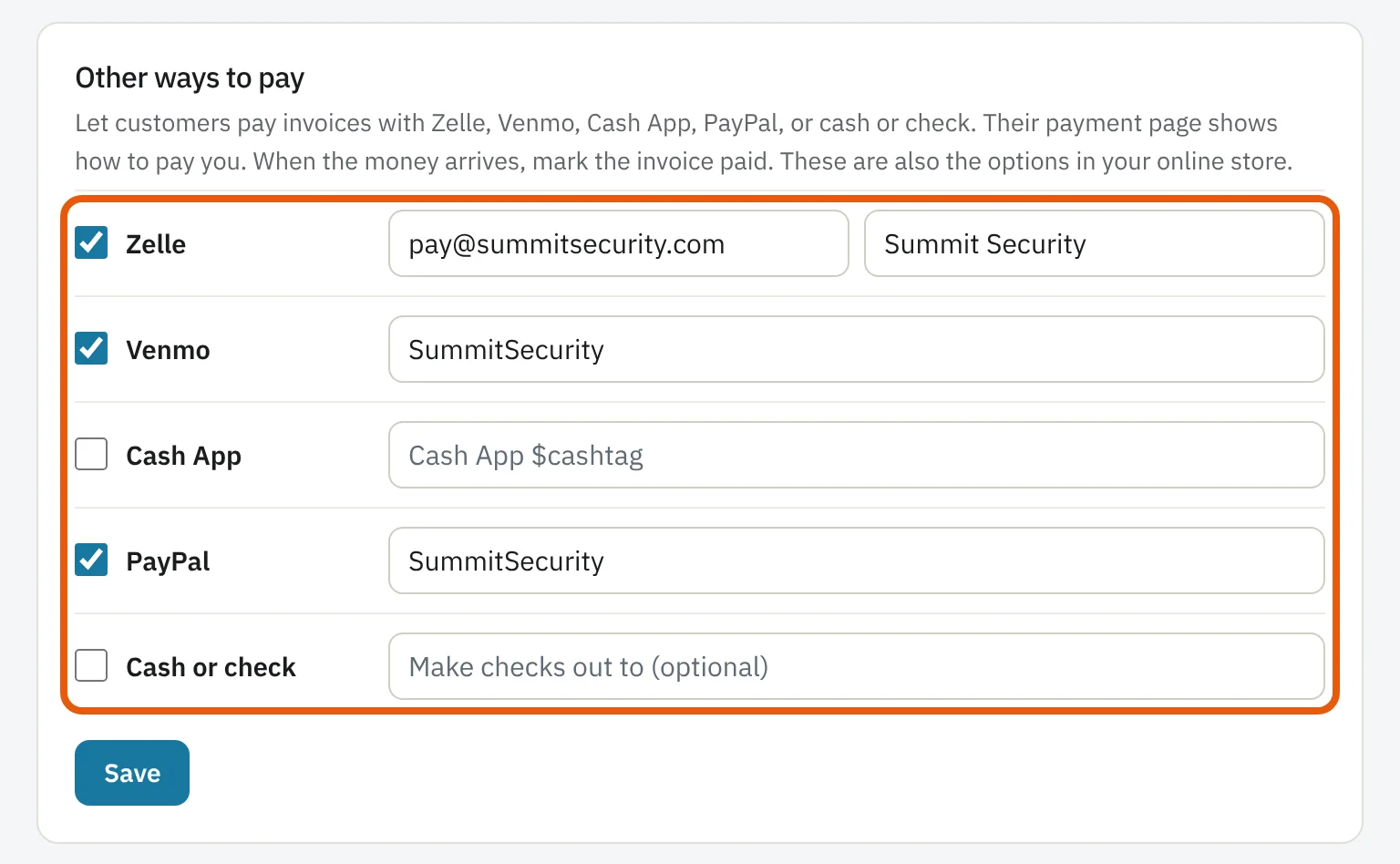
- Check each way you take and fill in your details: your Zelle email or phone, Venmo @username, Cash App $cashtag or PayPal.Me link. For Cash or check, you can add the name checks should be made out to.
- Press Save.
Note: These are the same settings your online store uses, so you only set them up once.
Choose the ways for an invoice
- On a new or open invoice, find How can the customer pay?. Every way you've set up is checked to start.

- Uncheck any you don't want for this invoice, then save the invoice.
On a phone, open the invoice and tap Invoice details. The same choices are there with the invoice date, due date and PO number. Press Save details.
What the customer sees
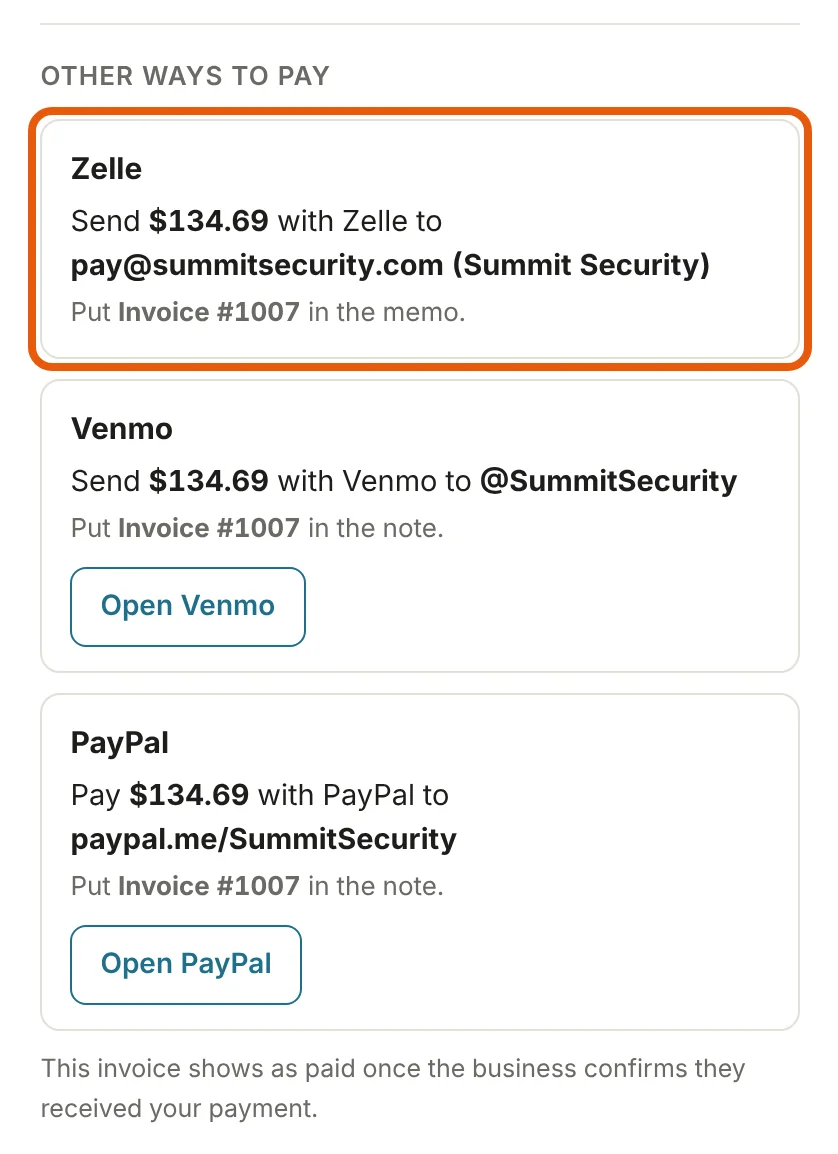
The payment page shows only the ways you checked. For Zelle, Venmo, Cash App, PayPal, and cash or check, it shows the amount, where to send it and the invoice number to put in the memo. Venmo, Cash App and PayPal have a button that opens the app.
When the money arrives
- Open the invoice.
- Next to Mark Paid Manually, pick how they paid, for example Zelle.
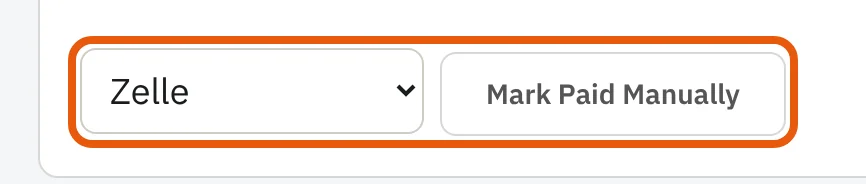
- Press Mark Paid Manually. The payment is recorded with that method.
Tip: For part payments, use Add payment on the invoice and pick the method there.
Note: Invoices you made before this feature keep the ways they had (card and bank account, if those are on).
Was this guide helpful?
Related guides
How to take a paymentHow to let customers pay by bank account (ACH)Invoice numbers, invoice date and PO numberStill stuck? Inside JobBills, press the round ? button to ask the help chat, or email [email protected].