How to connect your Alarm.com dealer account
Use your own Alarm.com account to create accounts, check IMEIs and put systems on test from JobBills.
Before you start
In your Alarm.com Partner Portal, make a dedicated rep/API login for JobBills. Don't use your personal login.
Connect
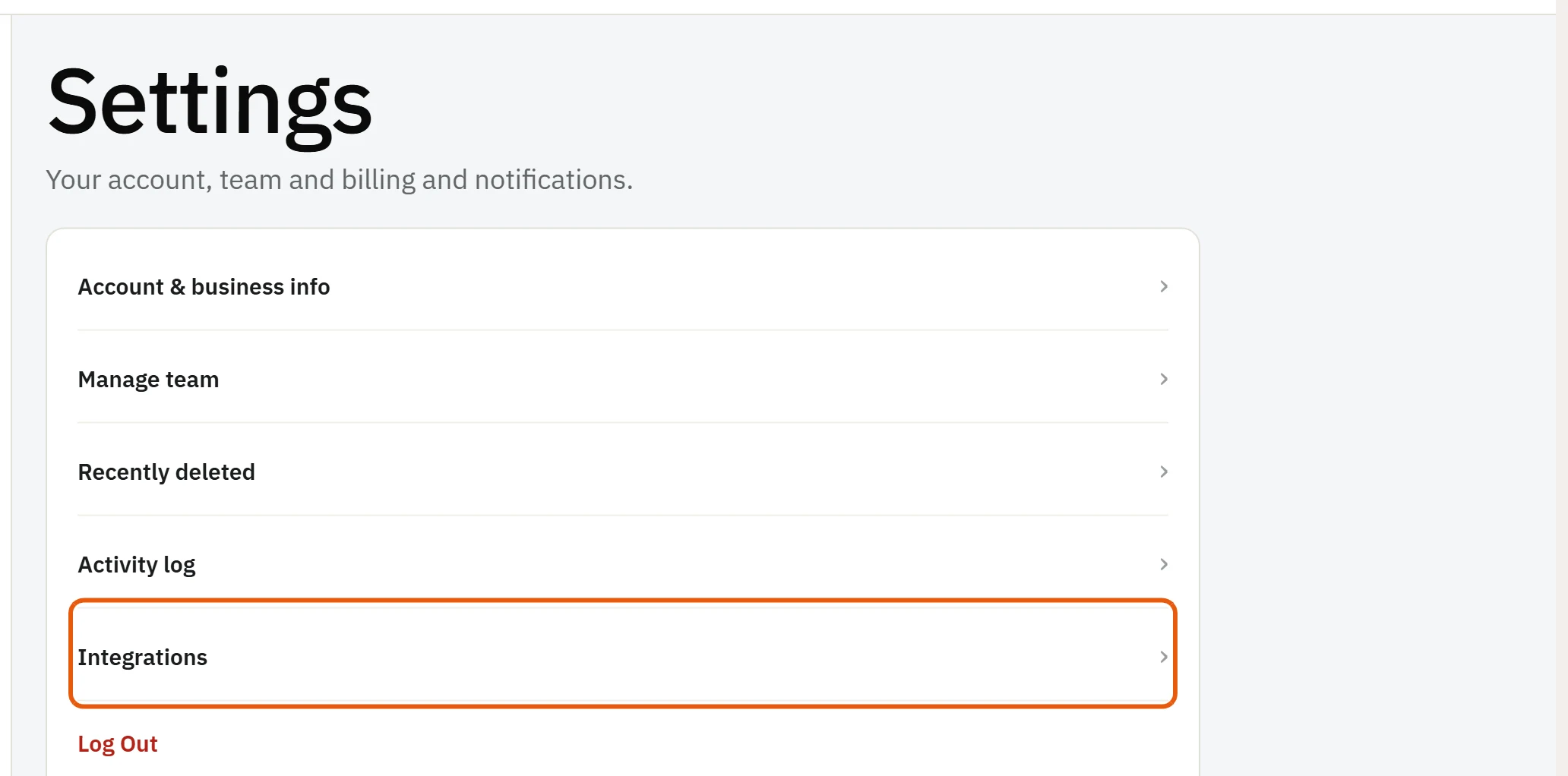
- Go to Settings and find Alarm.com.
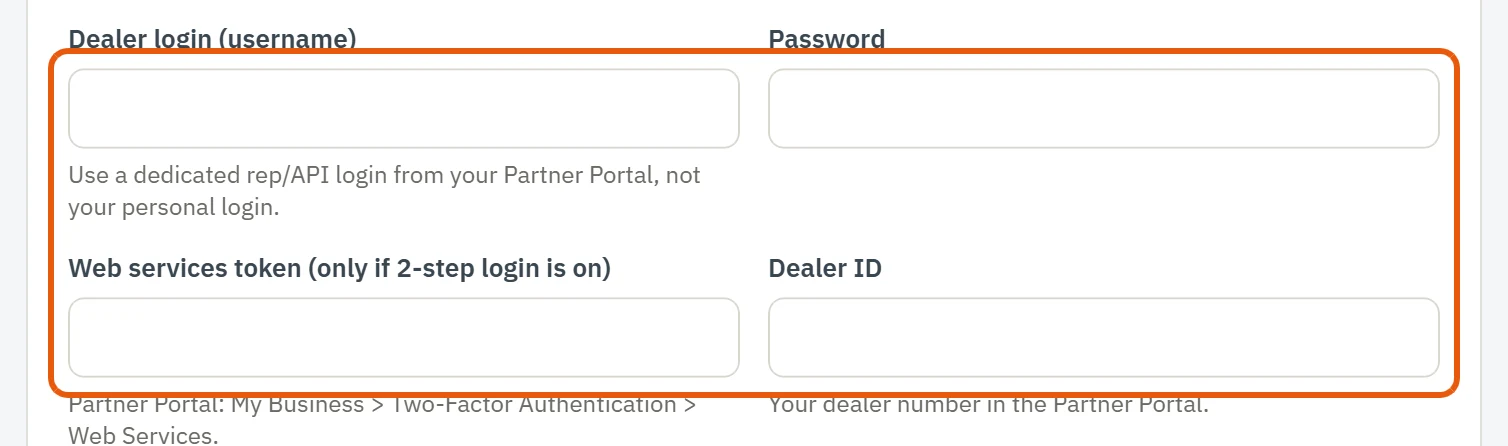
- Enter the Dealer login (username) and Password of that login.
- If 2-step login is on for it, add the Web services token (Partner Portal: My Business → Two-Factor Authentication → Web Services).
- Enter your Dealer ID (your dealer number in the Partner Portal).
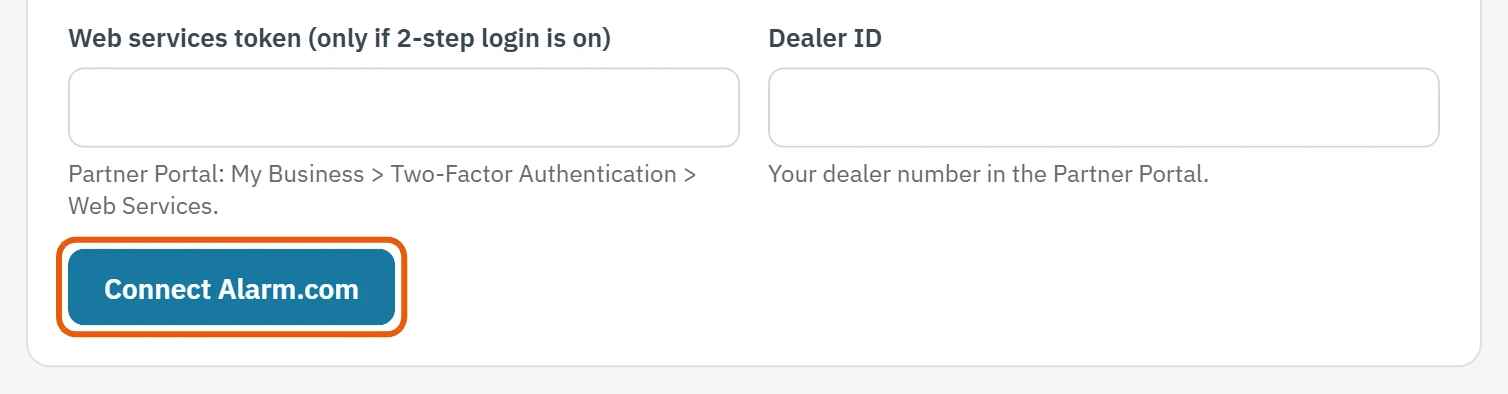
- Press Connect Alarm.com.
- Pick the Alarm.com packages you use for your plans, and your central station from the list. The receiver and prefix fill in by themselves. Choose None if you don't forward signals.
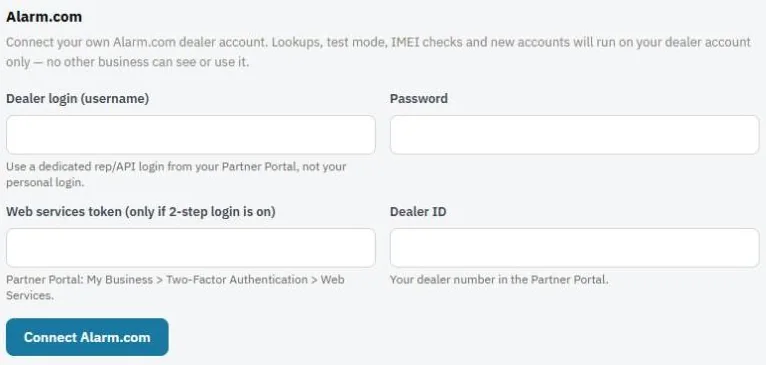
Everything runs on your own dealer account. No other business can see or use it.
What you can do once connected
- Create Alarm.com accounts from a client's page.
- Check if a cellular module (IMEI) can be activated.
- Put systems on test before working on them.
- Import your Alarm.com customers. See Import your customers.
Note: Alarm.com bills you for new accounts under your own Alarm.com agreement. Disconnecting doesn't delete any clients.
Was this guide helpful?
Related guides
How to create an Alarm.com account for a clientHow to check an IMEI before an installHow to put an account on testStill stuck? Inside JobBills, press the round ? button to ask the help chat, or email [email protected].